A Samsung screen that flickers is one of two things. Either something in the software is changing the picture in a way you did not ask for, or the display itself, and the connection that carries the picture to it, has stopped holding steady. The software half is free to rule out and takes about ten minutes, so it goes first.
Flicker looks different on different phones. A fast strobe on a white background, the whole screen dropping to black for a fraction of a second, a green or pink cast that comes and goes in the dark, fine lines that shimmer while you scroll. All of it counts as the same complaint, and the pattern you are seeing is most of the diagnosis.
Start with a force restart
Not the normal restart. A force restart, which the phone will do even when part of the software has stopped responding.
Press and hold the Side key and the Volume down key together for more than seven seconds, until the screen goes black and the Samsung logo appears. If the phone is flat, put it on a charger for fifteen minutes first and try again.
Then use the phone normally for a day before deciding whether it worked. A flicker that came once and went is not the same problem as one that arrives twice an hour.
Then run the phone in safe mode
Safe mode starts the phone without any of the apps you installed yourself. If the flicker stops there, an app is causing it and nothing needs repairing.
Switch the phone off. Switch it back on, and when the Samsung logo appears, press and hold the Volume down key until the phone has finished starting. Safe mode shows in the bottom left corner. To leave safe mode, restart the phone.
Stay in safe mode for as long as the flicker normally takes to appear. Thirty seconds proves nothing if the screen usually goes twice an hour. If it stays clean, the apps to suspect are the ones that draw on top of other apps or change what the screen is doing: blue light filters, dark mode forcers, screen dimmers, screen recorders, floating chat bubbles. Uninstall the newest one first and work backwards.
Samsung warns that wallpapers and themes may reset to their defaults when you leave safe mode, so do not panic when that happens.
Samsung's own diagnostics, and what it will not tell you
Samsung Members runs a free hardware self test, but be clear about what it covers. Samsung lists battery, NFC, SIM card, mobile network, sensors, speaker, camera, touch screen, wired headphones, face recognition and Bluetooth among the more than 24 features and functions it checks. Touch screen there means whether the glass registers your finger, which is a different question from whether the panel is showing a steady picture.
Run it anyway to clear everything else off the table. Open the Samsung Members app and find Diagnostics. In current versions of the app it sits under the Get help tab. Run the battery test, or tap Test all to run everything.
Watch when the flicker happens
What you notice over a few days is the first thing a technician will ask you.
If it only happens at low brightness, turn the brightness up and watch. Screens that misbehave in the dark and behave in daylight are common.
If it only happens while charging, unplug it, then try a different cable and a different adapter. A cable is the cheapest possible cause and the cheapest to replace. If the flicker follows the charger, you have found it. If it happens on every charger but never off charge, the charging side of the phone needs looking at as well as the display. Tablets do the same thing, and a Galaxy Tab that flickers only on charge gets the same test.
If it only happens when the phone is warm, note that too.
If it changes when you press gently on the screen or twist the phone slightly, that points at the connection rather than the panel.
Then take a screenshot while the flicker is happening and look at the image afterwards. A screenshot records what the phone is drawing, not what the glass is showing. If the screenshot is clean while the screen is not, the phone is producing a perfect picture and the display is failing to show it. That is hardware, and no amount of restarting or updating changes it.
If it started the same week as an update
Two different things look identical from the outside. Either the update is at fault and a later one fixes it, or the display was already on its way out and the update is simply the date you remember.
Safe mode and a force restart cover the software side. After that, open Settings, search for software update, and install anything waiting. If the flicker is still there on the newest build, in safe mode, after a force restart, you have taken it as far as anyone can from the outside.
What it means when none of that stops it
Two places on the hardware side go wrong, and water is a route into both.
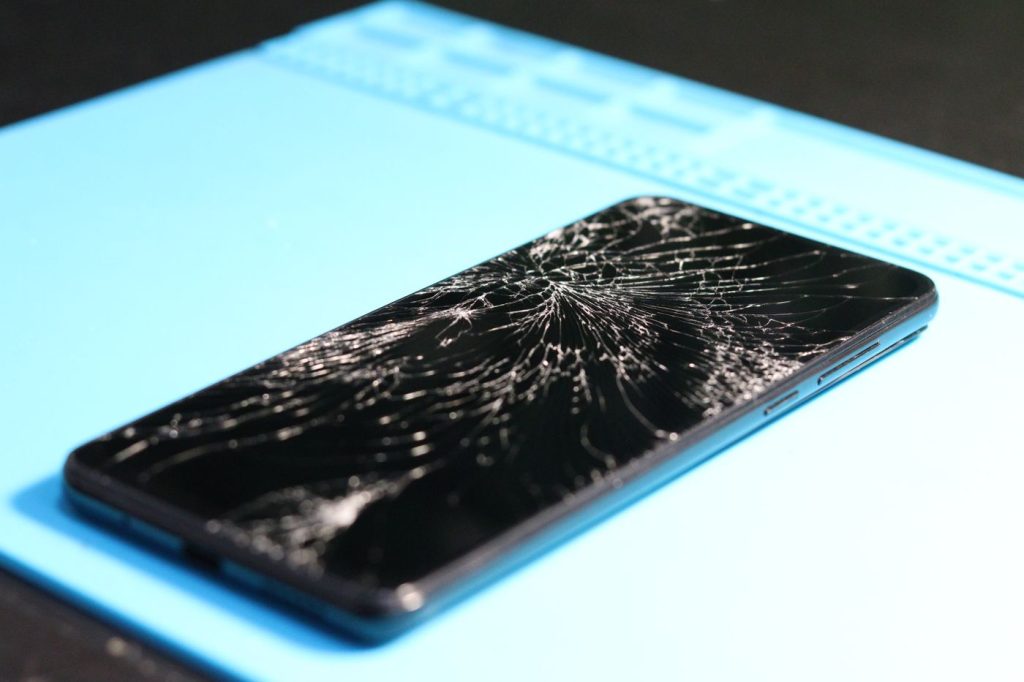
The connection. A drop, or a phone flexing in a back pocket, can disturb the connection between the display and the board. Flicker that changes when you press on the screen, or that started the same week as a drop, fits this. The glass does not have to be cracked, and usually it is not.
The panel. Displays also fail on their own, and they fail in stages: flicker or a colour cast first, then a line, then a band, then a dead strip that does not come back. A phone that is flickering is at the start of that sequence rather than the end. On a Galaxy Z Flip or Z Fold, flicker or a line along the crease is the panel giving way where it bends, and that one spreads.
Water. A phone that got wet, or that spent a Durban summer in a beach bag, can corrode the display connection weeks after the outside dried. If the flicker started after the phone got wet, the clock is running.
The repair that fixes it
A flickering Samsung screen is a screen replacement. On Galaxy phones the glass and the display are bonded into one part, so a screen that flickers with no crack in it is the same job as a smashed one. The current price for your model is on the screen replacement page, and every model we price sits on the Samsung repair prices page.
To find which model you have, open Settings and tap About phone. The model number, serial number and IMEI are on that screen.
If the flicker only ever happens on charge and a different cable and adapter made no difference, the charging port repair page is the other price to look at.
We fit original Samsung parts. The price includes the part and the fitting, most jobs are done in three working days, and the part and the work carry a three month warranty.
When a new screen is not the right call
There are phones we would rather you thought about before booking.
The screen is the most expensive part of a phone, and on the larger flagship models it is the part that decides whether a repair makes sense at all. Check what yours is selling for before you decide.
A flicker on a phone that also has a swollen battery, a port that will not charge and a history of water is not one repair. The second and third faults are the ones that settle it.
And if it is still inside its Samsung warranty, check with Samsung first.
Bringing the phone in
The work is done on site at Unit B, 31 Solstice Road, Umhlanga Ridge, Durban. There is no courier and no mail-in, so the phone has to come to us. People bring phones in from across Durban, the north and south coasts and inland, and a fair number drive down from Gauteng. Phone 031 569 2806 or WhatsApp 084 044 3444. Onnuri Tech has been repairing Samsung phones here since 2007.
Common questions
Why is my Samsung screen flickering when the glass is not cracked?
Because the glass and the display are separate layers of one bonded part, and the layer that produces the picture can fail while the glass over it stays perfect. Before you assume that, put the phone in safe mode. Switch the phone off. Switch it back on, and when the Samsung logo appears, press and hold the Volume down key until the phone has finished starting. Safe mode shows in the bottom left corner. To leave safe mode, restart the phone. If the flicker stops in safe mode an app is doing it. If it carries on, the fix is a screen replacement, because on Galaxy phones the glass and the display come out together as one part.
The flickering started right after a software update. Is it the update or the phone?
Both look the same from the outside, so test the software first. Press and hold the Side key and the Volume down key together for more than seven seconds, until the screen goes black and the Samsung logo appears. Then run the phone in safe mode for long enough that the flicker would normally have shown up. Then open Settings, search for software update, and install anything waiting. If it still flickers after all three, the software has been ruled out as far as you can from the outside and the display is what is left.
My screen only flickers while the phone is charging. Is that the screen or the charging port?
Test it with a different cable and a different adapter before anything else, because a failing cable is the cheapest answer available. If it flickers on every charger but never off charge, the charging side of the phone is in play alongside the display, and a Galaxy Tab behaves the same way. Prices for both jobs are on the charging port repair page and the screen replacement page, and both include the part and the fitting.
The screen flickers green, or shows faint lines, only at low brightness. Is that the same fault?
Same category and same repair. A colour cast or fine shimmering lines that appear in the dark and vanish at full brightness are the display rather than an app. Confirm it with a screenshot taken while it is happening: the image will look perfect while the screen does not, because a screenshot records what the phone is drawing and not what the panel is showing. On a Galaxy S or Galaxy A this kind of fault tends to spread into a line and then a band, so it is better priced early than after it has taken half the screen.
The phone got wet and now the screen flickers. Can it still be repaired?
Often, and sooner is better, because corrosion carries on working inside the phone long after the outside is dry. A wet phone that flickers is frequently a display problem and a connection problem at the same time, so it is not always a single part. Bring it in rather than leaving it in a drawer to see whether it settles. The work is done on site at Unit B, 31 Solstice Road, Umhlanga Ridge, and there is no courier or mail-in, so the phone has to come to us.
How long does a Samsung screen replacement take, and how do I check the price for my phone?
Most jobs are done in three working days, the price includes the part and the fitting, and the part and the work carry a three month warranty. To check yours, open Settings and tap About phone. The model number, serial number and IMEI are on that screen. Then find your model on the screen replacement page, or on the Samsung repair prices page, which lists every model we hold a price for.
Other Samsung faults