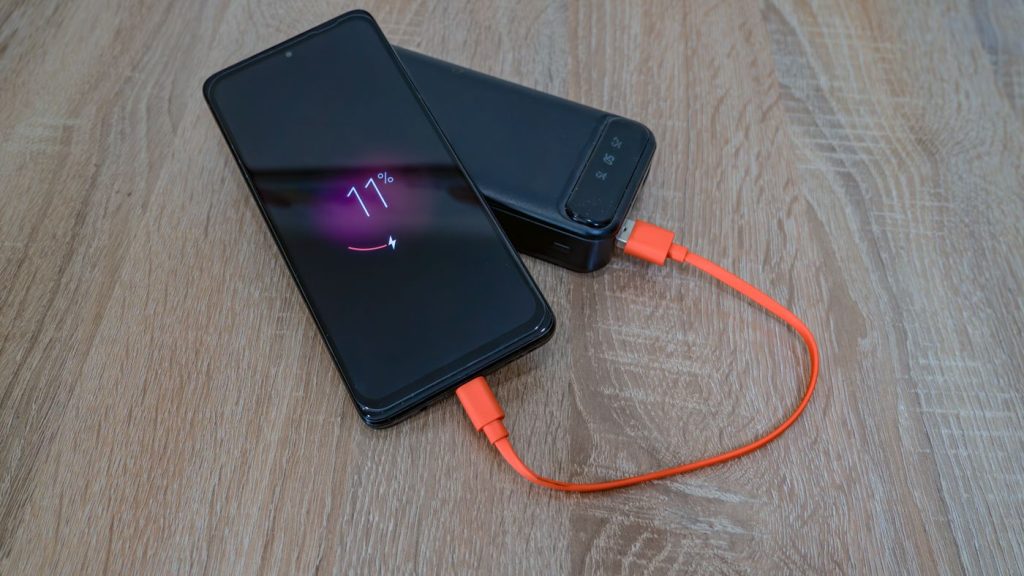
A Samsung that gets warm is not a broken Samsung. Samsung’s own support pages say it plainly: there are many reasons a phone or tablet may become hot, and it does not mean the device is faulty. Gaming, video calls, the camera, a hotspot, a long restore after setup, a hot car and a Durban afternoon all put heat into a phone, and the heat leaves again once you stop.
What matters is when it happens. A phone that is hot while you are doing nothing, hot every single time it charges, or throwing a cooling down warning while you read messages is not doing normal work. That pattern points at two parts, the battery and the charging port, and there are free checks for both before you pay anyone anything.
What the phone is doing while it heats up
Heat is a by-product of work. The processor, the modem and the battery all give some off, and it moves out through the frame and the back, which is why the outside of the phone is what you feel.
When the phone decides it is too hot, it protects itself before you have to. Samsung lists what happens: screen brightness and performance speed are limited, battery charging stops, running apps are closed, and calling and other features are held back apart from emergency calls. If the temperature keeps climbing, the phone switches itself off. Samsung is just as clear about the other direction. If there is no warning notification, the phone is fine, and warmth in your hand while it works hard will not shorten its life.
So the question is never whether your Samsung gets warm. It is whether it gets warm doing nothing.
Free things to try before you pay anyone
Take the case off. A thick case, a wallet case or a magnetic car mount holds heat against the back of the phone, and removing the cover is one of Samsung’s own first steps. Then get the phone out of direct sun and off the dashboard.
If it is on charge, unplug it and leave it until it is cool to touch. Samsung’s advice is to disconnect the charger and wait, rather than carry on using the phone while it cools.
Turn the screen brightness down, and switch off Wi-Fi, GPS and Bluetooth while you are not using them. Samsung also lists dropping the screen refresh rate to Standard. Open Settings and search for refresh rate rather than hunting through menus, because the setting has moved between One UI versions.
Close what is running in the background, and stop using the phone as a mobile hotspot while it is hot. Hotspot use, a weak signal and a big data restore are all on Samsung’s list of ordinary reasons a phone runs warm.
Check for a software update. A pending update sits on Samsung’s list of causes, and an app version that misbehaves until it is patched is a real thing.
Change the cable and the adapter. Samsung names charging with a damaged cable as a cause of heating, and a frayed or generic cable is the cheapest thing in this whole chain to rule out. Borrow a Samsung charger and cable you know are good, and try again.
Restart the phone. If it has locked up hot and will not respond, press and hold the Side key and the Volume down key together for more than seven seconds, until the screen goes black and the Samsung logo appears. If the phone is flat, put it on a charger for fifteen minutes first and try again.
If it heats on the charger overnight, cap the charge. Open Settings, tap Battery, then tap Battery protection. On One UI 6.1 there are three settings. Basic stops charging at 100 per cent and starts again at 95 per cent. Adaptive uses Maximum overnight and Basic before you wake. Maximum stops charging at 80 per cent. On One UI 7 and later you set the Maximum limit yourself rather than being held at 80 per cent. On versions older than One UI 6.1 there is one setting only, which caps charging at 85 per cent. The Battery screen has been redesigned since, so if Battery protection is not where you expect it, search Settings for it.
Give fast charging a day off. Open Settings and search for fast charging, because the exact menu name varies by One UI version. If the phone then charges cool and slow, the heat was tied to charging speed rather than to a fault, and you can choose which you would rather have.
If you see a water drop icon and charging is blocked, that is the moisture sensor, and it can trip on humidity alone without the phone ever touching water. Unplug the charger. Wipe the port with a dry cloth. Shake the phone gently five to ten times with the port facing downwards to release moisture, without force, because Samsung warns that excessive force or shaking may cause damage to your phone. Leave it on a cloth in a well ventilated place, or dry it with a fan. If the icon stays, clear the USB cache: from Settings go to Apps, tap the Filter and sort icon, turn on Show system apps and tap OK, scroll to USBSettings and tap Storage, then tap Clear cache. If it still does not clear, Samsung says to contact a service centre.
The two checks that tell you where you stand
Samsung Members carries a battery test, and it is the only battery check Samsung documents. Open the Samsung Members app and find Diagnostics. In current versions of the app it sits under the Get help tab. Run the battery test, or tap Test all to run everything. The battery result comes back as a word rather than a number. Normal means no performance issue with the battery. Weak means efficiency may have dropped through long term use or the conditions the phone has lived in. Bad means the battery has degraded significantly, and Samsung’s own advice on a Bad result is to have it looked at.
Do not go hunting for a battery percentage. Samsung does not give every Galaxy a battery health percentage. Some newer models, from the Galaxy S25 series on One UI 7 onwards, also show a battery information screen with a maximum capacity figure and a charge cycle count, but that screen is not on every phone and not in every country. If it is missing from your Settings, that is the software, not a fault.
The second check separates software from hardware and costs nothing. Switch the phone off. Switch it back on, and when the Samsung logo appears, press and hold the Volume down key until the phone has finished starting. Safe mode shows in the bottom left corner. To leave safe mode, restart the phone. Samsung warns that wallpapers and themes may reset to their defaults when you leave it.
Safe mode runs the phone on Samsung’s own software, without the apps you installed. Leave it there for a day of ordinary use and watch the temperature. A phone that runs cool in safe mode and hot out of it has an app problem, so work back through what you installed or updated shortly before the heat started and remove the suspect. A phone that runs just as hot in safe mode, with nothing of yours loaded, has a hardware problem.
What it means when it still runs hot
Three hardware causes account for most of it.
The battery. A lithium cell is not a simple tank. It has internal resistance, and that resistance climbs as the cell ages. Energy that used to go into running the phone comes out as heat instead, so the same call, the same charge and the same scroll produce more warmth than they used to. The tell is the combination: warm at rest, hot on charge, charge that disappears far faster than it once did, and a phone that switches itself off while the meter still shows charge left. A Weak or Bad result on the Samsung Members battery test alongside that pattern is about as clear as this gets without opening the phone.
A swollen battery is the same fault gone further, and it is the one that should not wait. The signs are mechanical rather than electronic: the back cover lifting at a corner or along an edge, the screen sitting proud of the frame, a gap you can catch a fingernail in, or a phone that rocks on a flat table instead of lying flat. Take it off charge and stop using it. Do not press on it and do not try to lever it apart. A swollen cell is under pressure, and puncturing one is how people get hurt.
The charging port. If the heat sits at the end of the phone the cable goes into, and only while it is plugged in, look at the port. A worn, bent or dirty port makes poor contact, and poor contact turns part of the charging current into heat exactly where the connection is bad. Charging that stops and starts on its own, a plug that feels loose or has to be held at an angle, and pocket lint packed into the connector all point the same way. On this coast there is a second version of it. Salt air and humidity corrode contacts, and a corroded port can both run hot and trip the moisture warning without the phone ever going near a pool.
Liquid that got in earlier. Corrosion on the board does not announce itself on the day it happens. Weeks later the phone runs warm with nothing open, drains hard, and the moisture warning will not clear however long it dries. That is current going where it should not, and it is the one cause here that a new battery will not fix.
The repair that fixes it
An overheating Samsung that turns out to be hardware is nearly always one of two parts.
A battery replacement is the fix for a tired or swollen cell, and it is the most common answer to this fault. The current price for your model is on the battery replacement page, and it covers the part and the fitting.
A charging port repair is the fix when the heat only shows up with the cable in, or when the port is corroded, loose or packed with lint. The current price is on the charging port repair page.
Where a swollen battery has already pushed the display up and cracked it or killed the touch, the phone needs both parts, and the display price sits on the screen replacement page. If you would rather compare models side by side, every price we carry is on one page.
Onnuri Tech has worked on Samsung since 2007, from Unit B, 31 Solstice Road, Umhlanga Ridge. Repairs use original Samsung parts, the part and the work carry a three month warranty, and most jobs take three working days. Everything is done on site, so there is no courier or mail-in and the phone comes in to the counter. People come from Durban and the north and south coast, from inland, and a fair number drive down from Gauteng. Phone 031 569 2806 or WhatsApp 084 044 3444.
You will want your model number when you look up a price. Open Settings and tap About phone. The model number, serial number and IMEI are on that screen.
When it is not worth repairing
A battery is money well spent on a phone that is otherwise sound. There are three situations where it is not.
Corrosion is the first. If liquid got in and the board is corroded, a new battery goes into a phone that still runs hot, because the fault was never in the part that got replaced. That needs looking at before anyone talks to you about a battery.
A queue of faults is the second. A hot battery, a port that has to be held at an angle and a screen with a line through it add up, and at some point the total is a large share of what the phone is worth. Nobody can do that sum for you, because it turns on the model and on what yours would fetch. Check what yours is selling for before you decide.
Samsung warranty is the third. If the phone is still inside its Samsung warranty, check with Samsung first.
One case runs the other way. A swollen battery is worth dealing with even on a phone you were ready to give up on, because the risk sits in leaving a swollen cell in a phone and putting it on charge, not in what the phone is worth. Get the battery out first, then decide about the rest of it.
Common questions
Is it normal for my Samsung to get hot while charging?
Some warmth on charge is normal, and Samsung says heat on its own does not mean the phone is faulty. Charging, using the phone while it charges and a warm room all add to it. The line Samsung draws is the warning notification: if none appears, the phone is fine. If a cooling down warning appears every time you charge, or the heat sits at the end where the cable goes in, open Settings, tap Battery, then tap Battery protection and cap the charge while you have the port and battery checked.
My Samsung overheats and the battery drains fast. Is the battery finished?
That pairing usually is the battery. As a cell ages, more of the energy passing through it comes out as heat instead of charge, so heat and fast drain tend to arrive together. Open the Samsung Members app and find Diagnostics, which in current versions sits under the Get help tab, and run the battery test. It reports Normal, Weak or Bad rather than a percentage. Weak or Bad alongside heat and fast drain points at a battery replacement, and the price for your model is on the battery replacement page.
Why does my Samsung get hot at the charging port?
Heat that sits at the port end, and only with a cable plugged in, is usually the port or the cable rather than the battery. Swap to a Samsung cable and adapter you know are good first, since Samsung names charging with a damaged cable as a cause of heating. If the heat stays, the port itself is the suspect: a loose plug, charging that stops and starts, or lint and corrosion in the connector. The repair is the same whether it is a Galaxy A15, an S23 or a Z Flip, and the current price is on the charging port repair page.
How do I stop a Galaxy A53 or A54 from overheating?
Start with the free steps that apply to any Galaxy. Take the case off, drop the screen brightness, switch off Wi-Fi, GPS and Bluetooth while you are not using them, and check for a software update. Then separate software from hardware. Switch the phone off, switch it back on, and when the Samsung logo appears press and hold the Volume down key until it has finished starting. Safe mode shows in the bottom left corner. If the A53 or A54 runs cool in safe mode, an app you installed is the cause. If it runs just as hot with only Samsung's own software loaded, test the battery next in Samsung Members.
My phone overheats and will not charge. What now?
A Galaxy that has decided it is too hot stops charging on purpose, along with limiting brightness and performance and closing running apps, so unplug it, take the case off and leave it somewhere cool before trying again. If it still will not charge once it is cool, look for the water drop icon. That is the moisture sensor blocking the port, and it can trip on humidity alone. Wipe the port with a dry cloth, shake the phone gently five to ten times with the port facing downwards without using force, and leave it to dry in a well ventilated place. If neither the heat nor the icon clears, the port or the battery needs looking at.
Where can I get an overheating Samsung looked at in Durban?
Onnuri Tech has worked on Samsung phones since 2007, at Unit B, 31 Solstice Road, Umhlanga Ridge. Repairs use original Samsung parts, the part and the work carry a three month warranty, and most jobs take three working days. The work is done on site, so there is no courier or mail-in and the phone comes in to the counter. People come in from Durban and the north and south coast, from inland, and some drive down from Gauteng. Phone 031 569 2806 or WhatsApp 084 044 3444. Bring your model number if you have it: open Settings and tap About phone.
Other Samsung faults