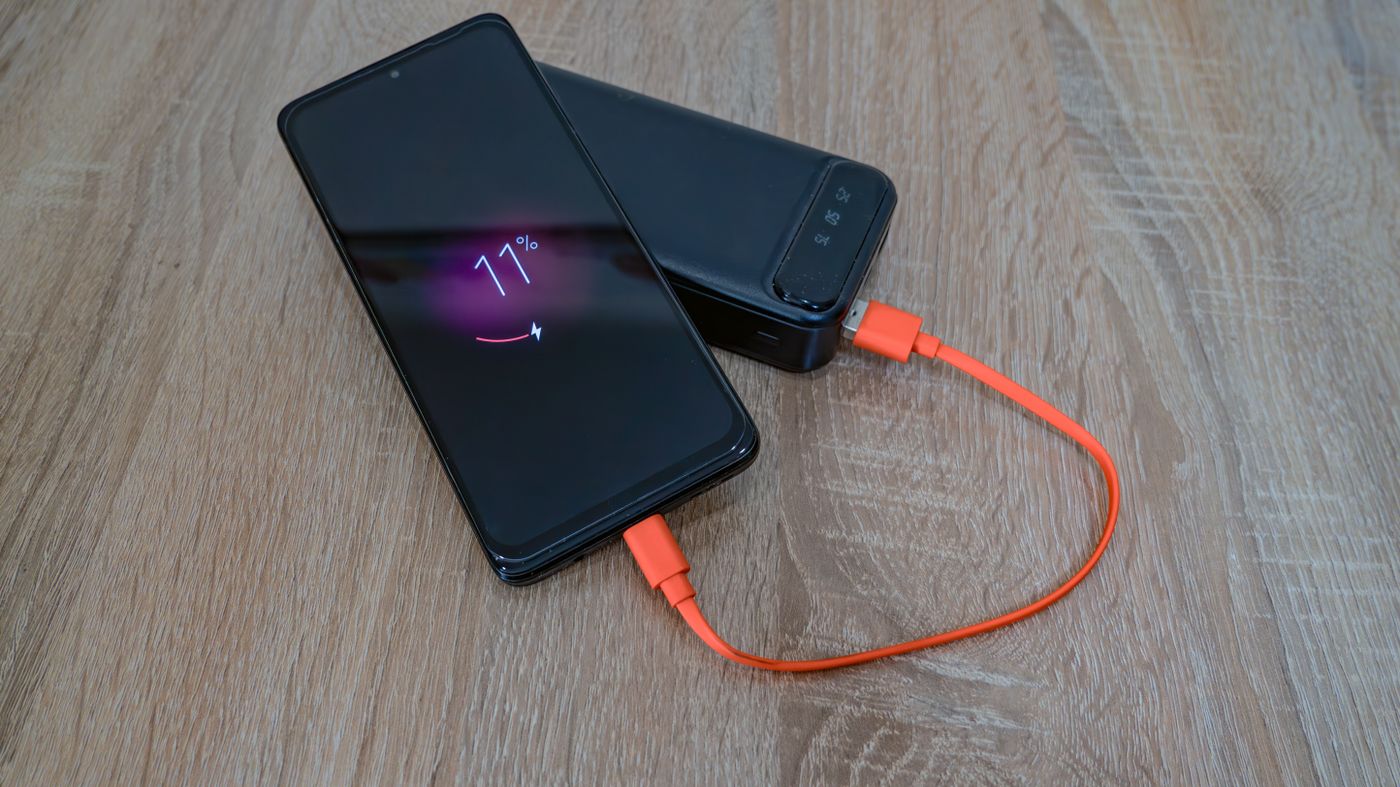
A Samsung that will not charge has a break somewhere in a short chain: the wall socket, the adapter, the cable, the charging port, the board that manages charging, and the battery. The first few links can be tested at home for nothing, so start there.
If the phone is completely dead and shows nothing at all when you plug it in, do this before anything else. Press and hold the Side key and the Volume down key together for more than seven seconds, until the screen goes black and the Samsung logo appears. If the phone is flat, put it on a charger for fifteen minutes first and try again.
If it charges but stops short, charges only when the cable is held at an angle, charges slowly, or shows a water drop icon and refuses to charge at all, each of those has its own cause and its own answer.
What is going wrong when a Samsung will not charge
Charging runs through six things, and any one of them can stop it: the wall socket, the adapter, the cable, the charging port, the board that manages charging, and the battery. A phone reads as broken when only one link is.
The symptom narrows it down before anyone opens anything. Nothing at all when you plug it in, no icon and no vibration, means either a battery flat enough to need a few minutes before it responds, or no power getting through the port. An icon that appears and then disappears, or comes and goes when the phone is moved, is a contact problem rather than a dead part. Charging only when the cable is held at an angle is a port packed with debris, or a port that is worn. Charging to 100 per cent and then running flat by early afternoon is a battery problem rather than a charging problem. And a water drop icon with charging blocked is the phone protecting itself on purpose.
Nothing happens when it is plugged in
Leave the phone on a charger you know works for fifteen minutes without touching it. A battery that has run all the way down can take that long before the screen shows anything at all.
Then force a restart. Press and hold the Side key and the Volume down key together for more than seven seconds, until the screen goes black and the Samsung logo appears. If the phone is flat, put it on a charger for fifteen minutes first and try again. Samsung notes that the Side key and Volume key positions vary by model, so check where they sit on yours.
Now change one thing at a time. A different cable. A different adapter. A different wall socket, ideally in another room. Cables fail more often than ports do, and a cable can still carry data while carrying very little current, so a phone that shows up on a computer is not proof of a good cable. If you can, test your cable and adapter on someone else’s phone, and their charger on yours. One swap can end the whole thing there.
With the phone switched off, look into the port with a torch. Pocket lint packs into the bottom of the port and compacts into a felt plug that stops the cable seating all the way in. If you can see it, lift it out with a wooden toothpick or a plastic pick, gently, working from the middle outwards. Never a pin, a needle or a paperclip. The contacts sit in there and they bend.
Checks you can run yourself on a phone that still switches on
These need a readable screen and a phone that comes on, even if only briefly. One UI versions differ widely from phone to phone, so if a menu is not where it is described here, open Settings and search for the name of the setting.
Rule out an app with safe mode. An app that keeps the phone awake can pull power out about as fast as a slow charger puts it in, which reads as charging that barely moves. Switch the phone off. Switch it back on, and when the Samsung logo appears, press and hold the Volume down key until the phone has finished starting. Safe mode shows in the bottom left corner. To leave safe mode, restart the phone. Plug the phone in while safe mode is on. If it charges properly there and badly out of it, an app is the cause, and the one to suspect is whatever was installed or updated just before the trouble started.
Check whether the phone is stopping on purpose. Open Settings, tap Battery, then tap Battery protection. On One UI 6.1 there are three settings. Basic stops charging at 100 per cent and starts again at 95 per cent. Adaptive uses Maximum overnight and Basic before you wake. Maximum stops charging at 80 per cent. On One UI 7 and later you set the Maximum limit yourself rather than being held at 80 per cent. On versions older than One UI 6.1 there is one setting only, which caps charging at 85 per cent. A phone that climbs to 80 per cent and parks there is following that setting, not failing. The Battery settings screen has been rearranged more than once, so if Battery protection is not where you expect it, search Settings for battery protection.
Check the charging speed setting. The exact menu name varies by One UI version. Open Settings and search for fast charging, then turn on the option your charger supports. Samsung says super fast charging is available on selected models only and needs a 25W or 45W Samsung approved adapter, so a phone filling slowly on a charger that came with something else is not necessarily faulty.
Run Samsung’s own battery test. Open the Samsung Members app and find Diagnostics. In current versions of the app it sits under the Get help tab. Run the battery test, or tap Test all to run everything. The result is a word rather than a number. Normal means no performance issues with the battery. Weak means the battery efficiency may have decreased due to long term use or environmental conditions. Bad means the battery life has significantly degraded, and Samsung’s own advice on a Bad result is to visit a Samsung support centre for advice.
One thing not to go hunting for. Samsung does not give every Galaxy a battery health percentage. The check Samsung documents is the battery test in Samsung Members, which reports the battery as Normal, Weak or Bad rather than a percentage. Some newer models, from the Galaxy S25 series on One UI 7 onwards, also show a battery information screen with a maximum capacity figure and a charge cycle count, but that screen is not on every phone and not in every country. If it is missing from your Settings, that is the software, not a fault.
When the phone says Moisture detected
Galaxy models rated IP68 and above carry a moisture sensor at the USB port. If there is water in the port, or moisture above a set point, charging is blocked to protect the phone from damage and corrosion.
It does not take a swim to set it off. Samsung states that the warning can appear when the phone has not been in contact with water, and that exposure to environments with high humidity may also trigger a water drop icon. On the Durban coast, that alone explains a lot of them.
Samsung’s steps, in order. Unplug the phone from the charger. Wipe the port with a dry cloth. Gently shake the phone five to ten times with the port facing downwards to release excess moisture, bearing in mind Samsung’s warning that excessive force or shaking may cause damage to your phone. Leave the phone on a cloth in a well ventilated place, or dry it with a fan.
If the icon does not clear, clear the USB cache. From Settings go to Apps, tap the Filter and sort icon, turn on Show system apps and tap OK, scroll to USBSettings and tap Storage, then tap Clear cache.
If it still does not clear, Samsung says to contact a service centre. A port that keeps reading wet when the phone is dry usually has corrosion or debris across the sensing pins, and that is a port replacement rather than a drying problem.
No rice, no hair dryer, no oven, no cotton buds, no compressed air. None of those appear anywhere in Samsung’s advice.
When the charging port feels loose
A cable that falls out on its own, or only charges while you press it in or hold it at an angle, is a mechanical problem at the connector. Two things cause it.
Debris packed at the bottom of the port stops the plug going all the way in, so it sits shallow and loses contact at the slightest movement. That is the free fix, and it is the one to try first.
Or the connector itself is worn or bent. Years of plugging in wears the contacts and the tabs that hold the plug. A cable pulled sideways, or a phone that lands on the floor while it is plugged in, bends the connector in one go.
If the port is clean and the cable still sits loose, the connector is finished, and trying more cables will not bring it back. On most Galaxy models the charging port is a replaceable part, so this is a repair rather than a new phone. The current price for your model is on the charging port repair page. Living with a port that only works at a certain angle tends to end with a phone that will not charge at all, usually on the day it is least convenient.
When it charges, but slowly
Slow charging has a different set of causes to no charging.
The adapter. Samsung says super fast charging is available on selected models only and needs a 25W or 45W Samsung approved adapter. A phone plugged into a laptop, a car socket, or an old charger from a previous handset will crawl, and nothing is wrong with it.
The cable. A cable with damaged conductors inside the sleeve can still charge, just slowly. Swapping it costs nothing and rules it out in a minute.
The setting. The exact menu name varies by One UI version. Open Settings and search for fast charging, then turn on the option your charger supports.
Battery protection. A phone that fills quickly and then sits at 80 per cent is following the Maximum setting, not charging slowly.
What the phone is doing while it charges. Gaming, using maps, or running a hotspot pulls power out at close to the rate it is going in, so the percentage barely climbs.
The battery. An older battery takes longer to fill and empties faster once it is full. When both are true at once, and the phone runs warm while charging, age is the likeliest answer. The battery test in Samsung Members returning Weak or Bad points the same way, and the current price for a replacement is on the battery replacement page.
The port. A dirty or lightly corroded port makes a poor contact, and a poor contact carries less current. That shows up as slow charging long before it shows up as no charging.
What it means when none of that helps
When a known good cable, a known good adapter, a clean port and a normal battery test still leave you with a phone that will not charge, the fault is inside the phone, and it is usually one of two parts.
The charging port. It is a mechanical connector that takes the strain of every plug and unplug, plus whatever happens when the phone is dropped or the cable is yanked out sideways. It is also the part that collects lint and takes any moisture that gets in. On most Galaxy models it can be replaced on its own.
The battery. Lithium batteries lose capacity as they age. Day to day that looks like a level that falls in jumps rather than steadily, a phone that switches off with 20 or 30 per cent still showing, a phone that only stays alive while it is plugged in, or one that charges to full and is flat by mid afternoon.
There is a third possibility, which is a fault on the board rather than in either part. A phone that shows no sign of life at all on a charger proven to work on another phone, with a port that has been cleaned and checked, may have taken damage past the port, usually from liquid or from a cheap charger. That is not a part swap, and the only way to know what is going on is to have the phone opened and looked at.
One thing to stop doing rather than start. If the back cover is lifting, the screen is being pushed up at one edge, or the phone has developed a curve, the battery is swelling. Stop charging it and bring it in.
The repair that fixes it, and what it involves
A worn or damaged port is a charging port repair. A battery that no longer holds its charge is a battery replacement. The current price for your model is on the charging port repair page and the battery replacement page, and every price for every model sits together on the Samsung repair prices page.
Have your model number ready, because the part and the price both depend on it. Open Settings and tap About phone. The model number, serial number and IMEI are on that screen. On a phone that will not switch on, the model number is printed on the back of some devices and on the original box.
Repairs here use original Samsung parts. The price shown includes the part and the fitting. Most jobs take three working days. The part and the work carry a three month warranty. Everything is done on site at the Umhlanga workshop, so there is no courier and no mail-in service; the phone is brought to the counter and collected from the counter.
If the phone is still inside its Samsung warranty, check with Samsung first.
When a repair is not the right call
Some phones should not be repaired, and this is where that gets decided.
Add the jobs together before you commit to the first one. A phone that needs a port and a battery is two repairs. If the screen is cracked as well, it is three, and the price for that one is on the screen replacement page. Add the total up, then check what yours is selling for second hand before you decide. That sum depends on what the phone is worth to you and what you would replace it with, so it is not a call anyone else can make for you.
Liquid damage that has reached the board is the clearest case for leaving it. If the port is corroded, the rest of the board took the same water, and a new port may buy weeks rather than years. Anyone going ahead with a port on a phone that went into a pool should know that first.
Age matters in one specific way. A phone that no longer receives security updates from Samsung is on a clock whatever you spend on the battery.
A phone that has already been opened and fitted with a non-Samsung part is often a longer job than it looks, because whatever went in last time may have to come out first.
And if it is a spare handset, or a second phone the household has already replaced, a repair on it is money spent on a drawer.
Bringing it in
Onnuri Tech, Unit B, 31 Solstice Road, Umhlanga Ridge, Durban. We have been repairing Samsung phones here since 2007. Phone 031 569 2806, or WhatsApp 084 044 3444.
People come in from across Durban and the wider area, the north and south coast and inland, and a fair number drive down from Gauteng. Bring the phone, and bring the cable and the adapter you have been charging it with.
Common questions
My Samsung says Moisture detected but it has not been near water. What do I do?
Samsung states that the warning can appear when the phone has not been in contact with water, and that exposure to environments with high humidity may also trigger a water drop icon, which is ordinary weather on the Durban coast. Unplug the phone from the charger. Wipe the port with a dry cloth. Gently shake the phone five to ten times with the port facing downwards to release excess moisture, keeping Samsung's warning in mind that excessive force or shaking may cause damage to your phone. Leave the phone on a cloth in a well ventilated place, or dry it with a fan. If the icon stays, clear the USB cache: from Settings go to Apps, tap the Filter and sort icon, turn on Show system apps and tap OK, scroll to USBSettings and tap Storage, then tap Clear cache. If it still will not clear, Samsung says to contact a service centre, and on a phone that reads wet while dry that normally means the port itself needs replacing.
Why does my Galaxy stop charging at 80 per cent?
That is Battery protection, not a failing battery. Open Settings, tap Battery, then tap Battery protection. On One UI 6.1 there are three settings. Basic stops charging at 100 per cent and starts again at 95 per cent. Adaptive uses Maximum overnight and Basic before you wake. Maximum stops charging at 80 per cent. On One UI 7 and later you set the Maximum limit yourself rather than being held at 80 per cent. On versions older than One UI 6.1 there is one setting only, which caps charging at 85 per cent. The Battery settings screen has been rearranged more than once across One UI versions, so if the menu is not where you expect it, open Settings and search for battery protection.
How do I tell whether it is the battery or the charging port?
The timing of the symptom separates them. A port fault shows up at the moment of connection: no icon at all, an icon that comes and goes as the phone is moved, charging only at a certain angle, or a cable that will not stay put. A battery fault shows up after charging: it fills to 100 per cent and empties fast, the level drops in jumps, or the phone switches off with charge still showing. Run Samsung's own check as well. Open the Samsung Members app and find Diagnostics. In current versions of the app it sits under the Get help tab. Run the battery test, or tap Test all to run everything. It reports Normal, Weak or Bad, and Samsung's advice on a Bad result is to visit a Samsung support centre. Prices for both jobs are on the charging port repair page and the battery replacement page, and both include the part and the fitting.
Can I see my Samsung's battery health percentage?
Samsung does not give every Galaxy a battery health percentage. The check Samsung documents is the battery test in Samsung Members, which reports the battery as Normal, Weak or Bad rather than a percentage. Some newer models, from the Galaxy S25 series on One UI 7 onwards, also show a battery information screen with a maximum capacity figure and a charge cycle count, but that screen is not on every phone and not in every country. If it is missing from your Settings, that is the software, not a fault, and the Samsung Members result is the one to go by.
How long does a charging port repair take, and will I lose anything on the phone?
Most jobs are finished in three working days, and the part and the work carry a three month warranty. The price shown for your model includes the part and the fitting. Replacing a charging port does not involve the phone's storage, so photos, messages and apps stay where they are, although backing the phone up before any repair is a sensible habit. Work is done on site at Unit B, 31 Solstice Road, Umhlanga Ridge, so the phone is brought in and collected rather than couriered. Bring the model number with you if you can: open Settings and tap About phone, and the model number, serial number and IMEI are on that screen.
My Galaxy will not switch on at all. Is that the charger or the phone?
Start by ruling out a battery that has gone completely flat. Put it on a charger you know works and leave it fifteen minutes without touching it. Then press and hold the Side key and the Volume down key together for more than seven seconds, until the screen goes black and the Samsung logo appears. If the phone is flat, put it on a charger for fifteen minutes first and try again. Samsung notes that the Side key and Volume key positions vary by model. If there is still nothing after two different cables and two different adapters, power is not reaching the battery, which points at the charging port, a battery too far gone to accept a charge, or a fault on the board. That needs the phone opened at the counter in Umhlanga rather than anything more you can do at home.
Other Samsung faults